
Become A Certified BIM Professional With Placement Assistance
Master Revit, Navisworks, BIM Workflows & Real-Time Projects At CADDESK Marathahalli Bangalore
All Level
16 Weeks
Autodesk Certification
Practical Training
Live Projects
Complete BIM Course Training Program

AutoCAD
Industry Ready AutoCAD Training
Revit Architecture
Efficient Architectural Design Software
Revit Structure
Smart Structural Engineering Platform
Revit MEP
Efficient Building Systems Modeling
Navisworks
Advanced Model Review Navisworks
Primavera
Primavera Planning Made Simple
Enscape
Live Design Visualization Tool
Sketchup
Intuitive 3D Design Software
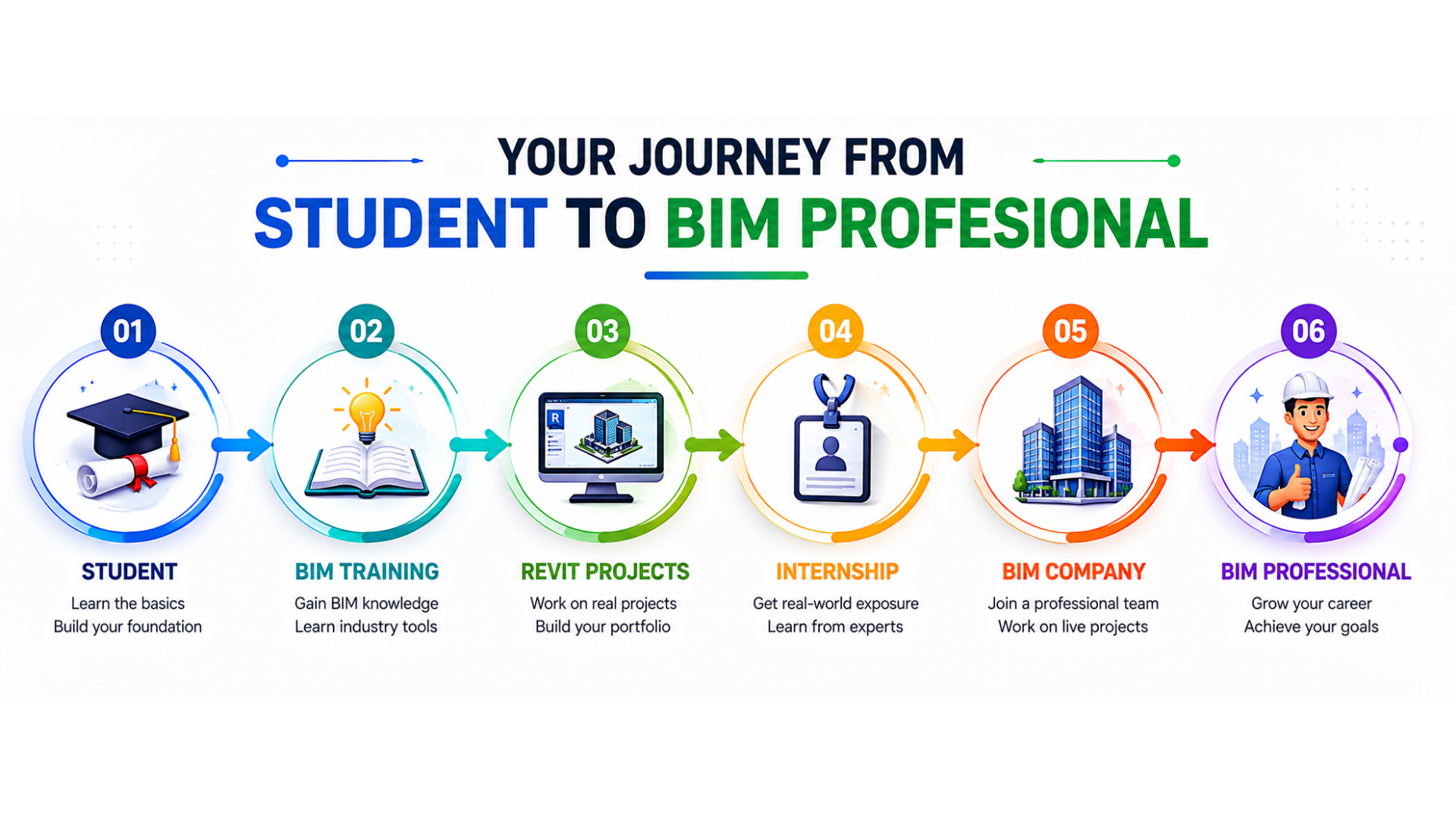
Start Your Career In BIM
Get Expert Guidance to Start Your BIM Career
Why Students Choose CADDESK Marathahalli

Student Login Portal
Access recorded sessions, assignments & notes

Placement Assistance
Resume building + job preparation

Interview Guarantee Training
Mock interviews & HR sessions
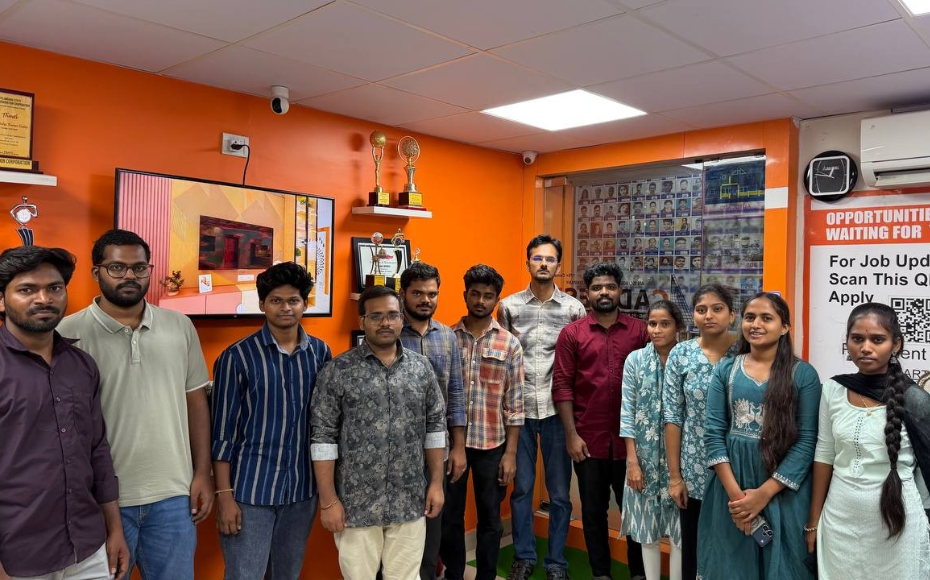
Experienced Trainers
Industry professionals with real BIM experience
Course Curriculum Overview
- Overview of AutoCAD interface and workspace
- Basic navigation tools and commands
- Drawing and editing basic geometric shapes
- Precision drawing using coordinates
- Layers and properties
- Move, copy, and mirror commands
- Array and offset tools
- Trim, extend, and fillet commands
- Understanding and modifying object properties
- Using the Properties palette
- Adding text to drawings
- Dimensioning and leaders
- Working with multileaders
- Applying hatches and gradients to fill areas
- Managing hatch patterns
- Explode, join, and break commands
- Grips and dynamic input
- Creating and inserting blocks
- Working with attributes
- Dimension styles and settings
- Dimension overrides and styles
- Creating isometric drawings
- Using isometric snap and grid settings
- Attaching and detaching external references
- Managing Xref layers and properties
- Introduction to 3D workspace
- Creating and modifying 3D objects
- Solid modelling and editing
- Boolean operations
- Mesh modelling
- Materials and textures
- Lighting and rendering settings
- Creating and managing sheet sets
- Publishing and plotting drawings
- Customising the AutoCAD interface
- Introduction to AutoLISP programming
- Data linking and importing/exporting file formats
- Collaborative features and tools
- Practical application of AutoCAD skills in real-world projects
- Problem-solving and troubleshooting techniques
- Understanding the principles of BIM and its advantages
- Navigating the Revit interface and work environment
- Creating and customising project templates
- Configuring settings for collaboration and sharing
- Working with parametric elements: walls, floors, roofs, and ceilings
- Modelling doors, windows, stairs, and railings
- Utilising families and components for efficient design
- Creating and modifying 3D views and perspectives
- Developing the architectural concept with massing and volume studies
- Using sketching and modelling tools for design iterations
- Creating detailed floor plans and elevations
- Applying the design development workflow
- Introducing structural elements in architectural models
- Coordinating with engineers for structural analysis and design
- Placing beams, columns, and foundations
- Understanding load distribution and gravity analysis
- Coordinating with MEP (Mechanical, Electrical, Plumbing) disciplines
- Placing and modifying MEP elements
- Clash detection and resolution techniques
- Interdisciplinary collaboration in a BIM environment
- Coordinating with MEP (Mechanical, Electrical, Plumbing) disciplines
- Placing and modifying MEP elements
- Clash detection and resolution techniques
- Interdisciplinary collaboration in a BIM environment
- Setting up rendering settings and materials
- Enhancing visualisations with lighting and camera settings
- Using rendering plugins for photorealistic presentations
- Creating walkthroughs and fly-through animations
- Generating 2D construction documents (plans, elevations, sections)
- Annotating and dimensioning drawings
- Creating schedules and material take-offs
- Utilising Revit’s detailing tools for precise documentation
- Integrating energy analysis tools in Revit
- Conducting energy simulations for sustainability evaluation
- Exploring daylighting and solar analysis
- Optimising building performance for efficiency
- Managing collaboration and worksharing in Revit projects
- Creating and managing worksets
- Reviewing and resolving conflicts with BIM 360 (or other collaboration tools)
- Team collaboration and version control
- Architectural design for a residential building
- Creating a commercial space layout
- Designing a cultural or institutional building
- Understanding the role of Revit Structure in the BIM workflow
- Navigating the Revit Structure interface and work environment
- Configuring project settings and units for structural projects
- Setting up work sharing and collaboration tools
- Creating and editing structural elements: beams, columns, walls, etc.
- Utilising construction tools for precise modelling
- Adding structural openings and joints
- Understanding the concept of families and using them in structural models
- Placing foundations and footings
- Designing and editing slabs and floors
- Working with trusses and framing elements
- Customising structural connections and reinforcement detailing
- Preparing models for structural analysis
- Utilising Revit add-ins for structural analysis and code compliance (e.g., Robot Structural Analysis, Advance Design)
- Verifying structural integrity and stability
- Designing for different load conditions and combinations
- Adding rebar to structural elements
- Generating reinforcement drawings and schedules
- Annotating and dimensioning structural drawings
- Creating 2D construction documents
- Analysing complex structural systems and irregular shapes
- Performing load analysis for seismic and wind design
- Optimising structural designs for efficiency and safety
- Implementing sustainable design practices
- Coordinating with architectural and MEP disciplines
- Clash detection and resolution in a BIM environment
- Collaborating with engineers and architects in multi-disciplinary projects
- Managing interdisciplinary workflows
- Exploring cloud-based collaboration with BIM 360
- Sharing models and documents with team members and stakeholders
- Real-time updates and version control
- Reviewing and resolving clashes through cloud-based platforms
- Designing a commercial building structure
- Analysing and designing a bridge or elevated structure
- Structural planning and documentation for an institutional building
- Understanding the role of Revit MEP in the BIM workflow
- Navigating the Revit MEP interface and work environment
- Configuring project settings and units for MEP projects
- Setting up work sharing and collaboration tools
- Creating and editing MEP systems (mechanical, electrical, plumbing)
- Placing MEP fixtures and equipment
- Utilising system types and connectors for MEP elements
- Customising and utilising MEP families
- Designing heating, ventilation, and air conditioning (HVAC) systems
- Placing and configuring HVAC equipment (AHUs, fans, etc.)
- Distributing air and managing ductwork
- Analysing airflows and performing load calculations
- Creating electrical systems and circuitry
- Placing electrical fixtures and equipment (lights, switches, panels)
- Designing electrical circuits and connections
- Load analysis and power distribution
- Designing plumbing systems (water supply, drainage, and sanitary)
- Placing plumbing fixtures and equipment (sinks, toilets, pipes)
- Managing pipe routing and slope
- Hydraulic analysis and pipe sizing
- Designing fire protection systems (sprinklers, fire pumps, etc.)
- Placing and configuring fire protection components
- Analysing fire protection coverage and hydraulic calculations
- Performing energy analysis for MEP systems
- Evaluating MEP system efficiency and sustainability
- Implementing green building practices
- Performing energy analysis for MEP systems
- Evaluating MEP system efficiency and sustainability
- Implementing green building practices
- Exploring cloud-based collaboration with BIM 360
- Sharing models and documents with team members and stakeholders
- Real-time updates and version control
- Reviewing and resolving clashes through cloud-based platforms
- Designing MEP systems for a commercial building
- MEP planning and documentation for a healthcare facility
- Analysing and designing MEP systems for a residential complex
- Understanding the role of Navisworks in the construction workflow
- Navigating the Navisworks interface and work environment
- Importing and managing 3D models from various sources
- Configuring settings for optimal performance
- Reviewing and analysing 3D models in Navisworks
- Utilising navigation tools for exploration and walkthroughs
- Using selection and visibility tools for model isolation
- Creating viewpoints and sections for better understanding
- Merging and coordinating multi-disciplinary models
- Performing clash detection for identifying conflicts and clashes
- Analysing and resolving clashes in coordination with teams
- Managing clash reports and communication
- Extracting quantities and measurements from the model
- Generating material takeoffs and cost estimates
- Utilising quantification data for project estimation
- Creating custom reports and documentation
- Creating time-based simulations and animations
- Visualising construction sequences and project phasing
- Utilising the Animator for presenting construction progress
- Exporting animated walkthroughs for communication
- Coordinating clash resolutions with design teams
- Implementing the “4D” workflow for clash management
- Creating and managing issues and RFI tracking
- Integrating clash resolutions into project updates
- Collaborating on Navisworks projects with team members
- Using BIM 360 and cloud-based platforms for collaboration
- Sharing Navisworks files with stakeholders for review
- Managing permissions and access control
- Utilising laser scans and point clouds in Navisworks
- Exploring advanced clash detection and rule sets
- Integrating with other software (e.g., Revit, AutoCAD, etc.)
- Managing large-scale projects with Navisworks Manage
- Coordinating a multi-disciplinary construction project
- Analysing and resolving clashes in an infrastructure project
- Simulating construction progress for a complex building
- Understanding the purpose and benefits of Enscape in architectural visualization
- Navigating the Enscape interface and settings
- Installing Enscape plugins for popular design software (Revit, SketchUp, Rhino, etc.)
- Configuring Enscape for optimal rendering performance
- Exploring the principles of real-time rendering
- Applying materials and textures to 3D models
- Utilizing lighting techniques for realistic illumination
- Setting up cameras and views for compelling visualizations
- Creating realistic outdoor environments and landscapes
- Adding vegetation, water bodies, and natural elements
- Implementing weather effects (e.g., rain, snow, etc.)
- Enhancing environmental effects for visual storytelling
- Designing and rendering realistic interior spaces
- Utilizing lighting and material settings for indoor scenes
- Incorporatingfurniture, decor, and props
- Creating ambiance and atmosphere for immersive experiences
- Animating camera movements and walkthroughs
- Creating interactive presentations for clients and stakeholders
- Integrating animation with design software (e.g., Revit, SketchUp, etc.)
- Exporting video and interactive experiences
- Customizing Enscape settings and preferences
- Utilizing Enscape asset library for quick scene setup
- Implementing post-processing effects for cinematic quality
- Optimizing visualizations for different output formats
- Introducing virtual reality (VR) capabilities in Enscape
- Preparing and optimizing projects for VR walkthroughs
- Configuring VR settings and controls
- Creating immersive VR presentations
- Collaborating with team members and stakeholders using Enscape
- Sharing Enscape projects for remote viewing and collaboration
- Reviewing and annotating scenes in real-time
- Implementing multi-user VR meetings
- Creating a realistic architectural visualization for a residential building
- Designing an interior visualization for a commercial space
- Crafting an immersive experience for an urban development
- Understanding the role of Primavera P6 in project management
- Navigating the Primavera P6 interface and workspace
- Creating and customising projects and calendars
- Defining user roles and access permissions
- Setting up a project: WBS (Work Breakdown Structure) creation
- Defining activities and relationships (dependencies) between tasks
- Assigning resources and costs to activities
- Understanding critical path analysis and schedule calculation
- Creating a baseline for project monitoring and control
- Optimising project schedule and resource allocation
- Identifying milestones and key deliverables
- Evaluating schedule and resource constraints
- Creating and managing resource pools
- Assigning resources to activities and optimising resource utilisation
- Tracking resource availability and resolving resource conflicts
- Analysing resource allocation and performance metrics
- Updating project progress and actuals
- Comparing actual progress with the baseline schedule
- Analysing schedule variances and performance indices
- Identifying and resolving schedule delays
- Understanding EVM concepts and metrics (CPI, SPI, etc.)
- Calculating earned value, planned value, and actual cost
- Analysing EVM data for project performance assessment
- Forecasting project completion and cost projections
- Generating custom reports and dashboards
- Utilising graphical charts and visualisations for project analysis
- Exporting data to other formats (Excel, PDF, etc.)
- Using Primavera P6’s built-in analysis tools
- Managing multiple projects with a portfolio approach
- Resource levelling and optimization across multiple projects
- Identifying interdependencies and resource constraints
- Integrating risk management processes in Primavera P6
- Performing qualitative and quantitative risk analysis
- Implementing risk response plans and contingency measures
- Project scheduling and control for construction projects
- Planning and tracking engineering projects with Primavera P6
- Managing complex projects in the oil and gas industry
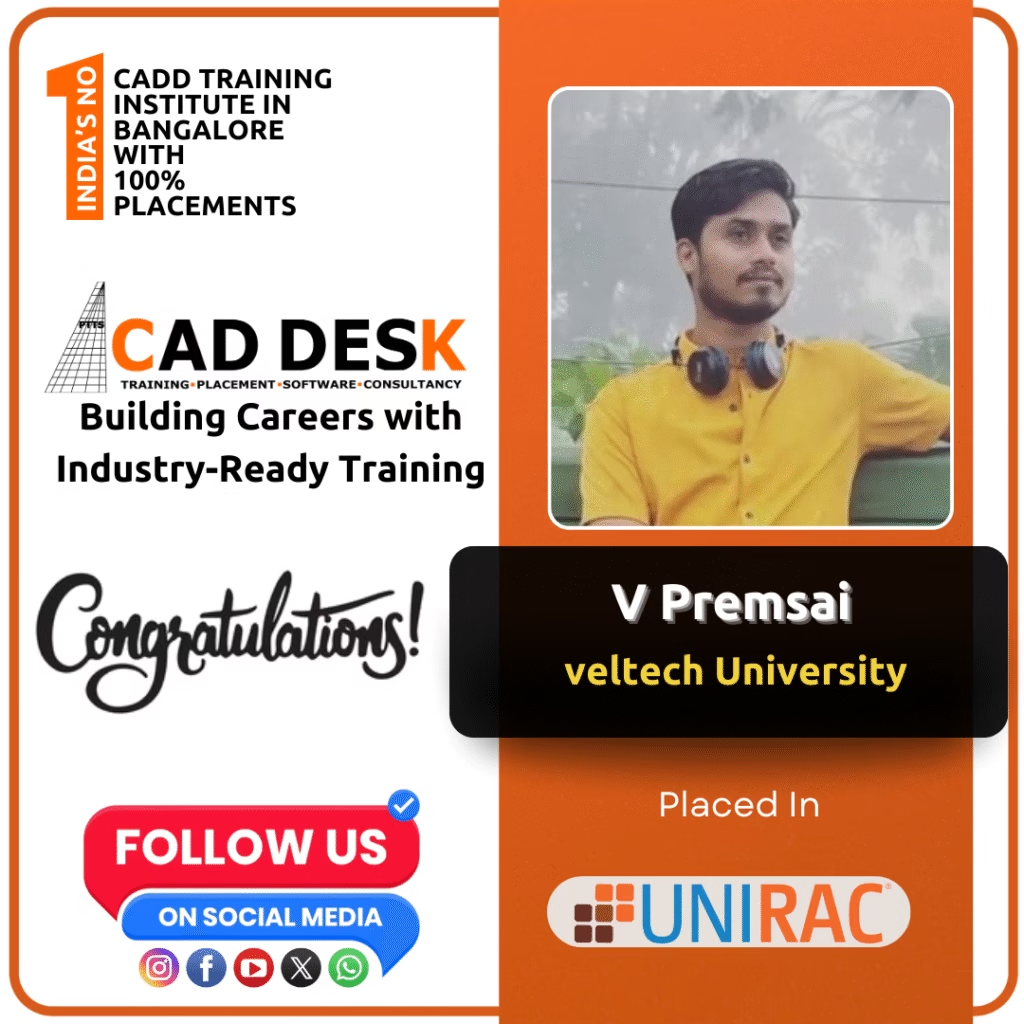
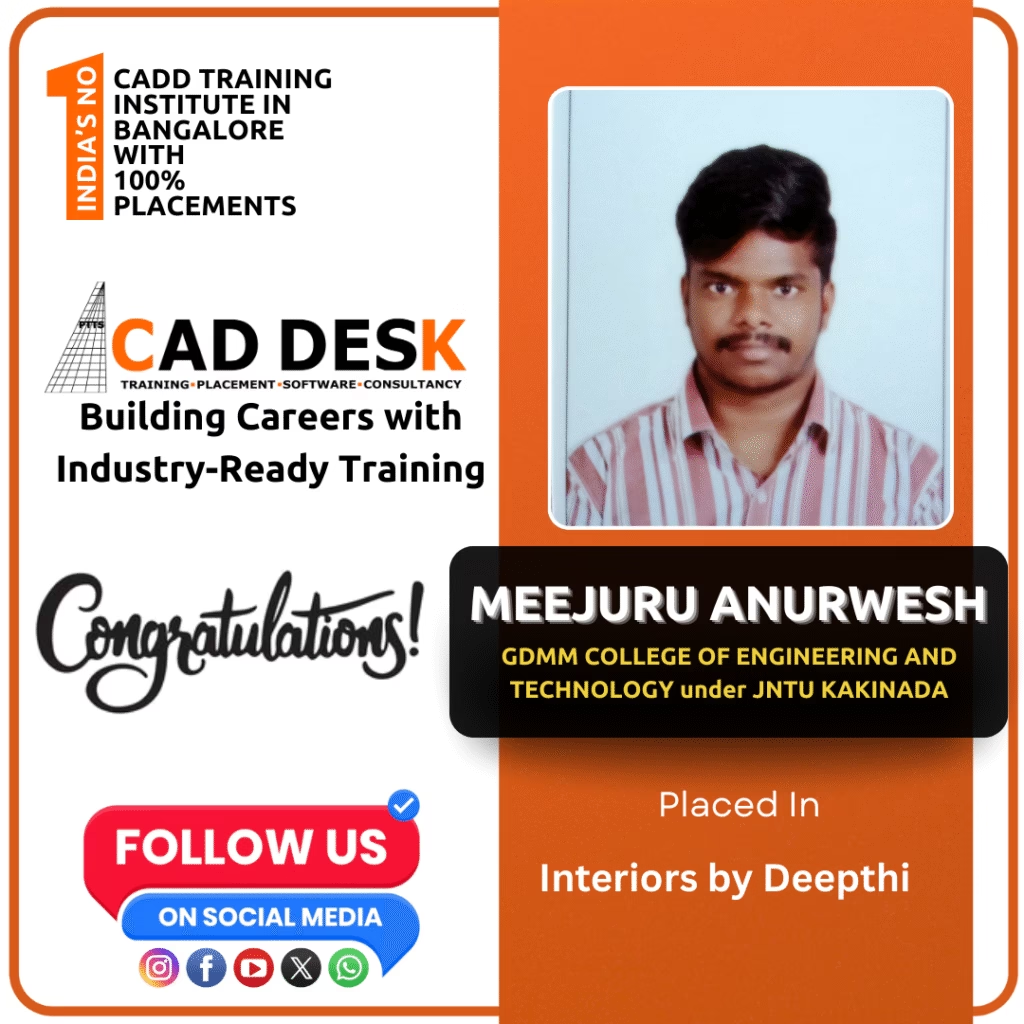
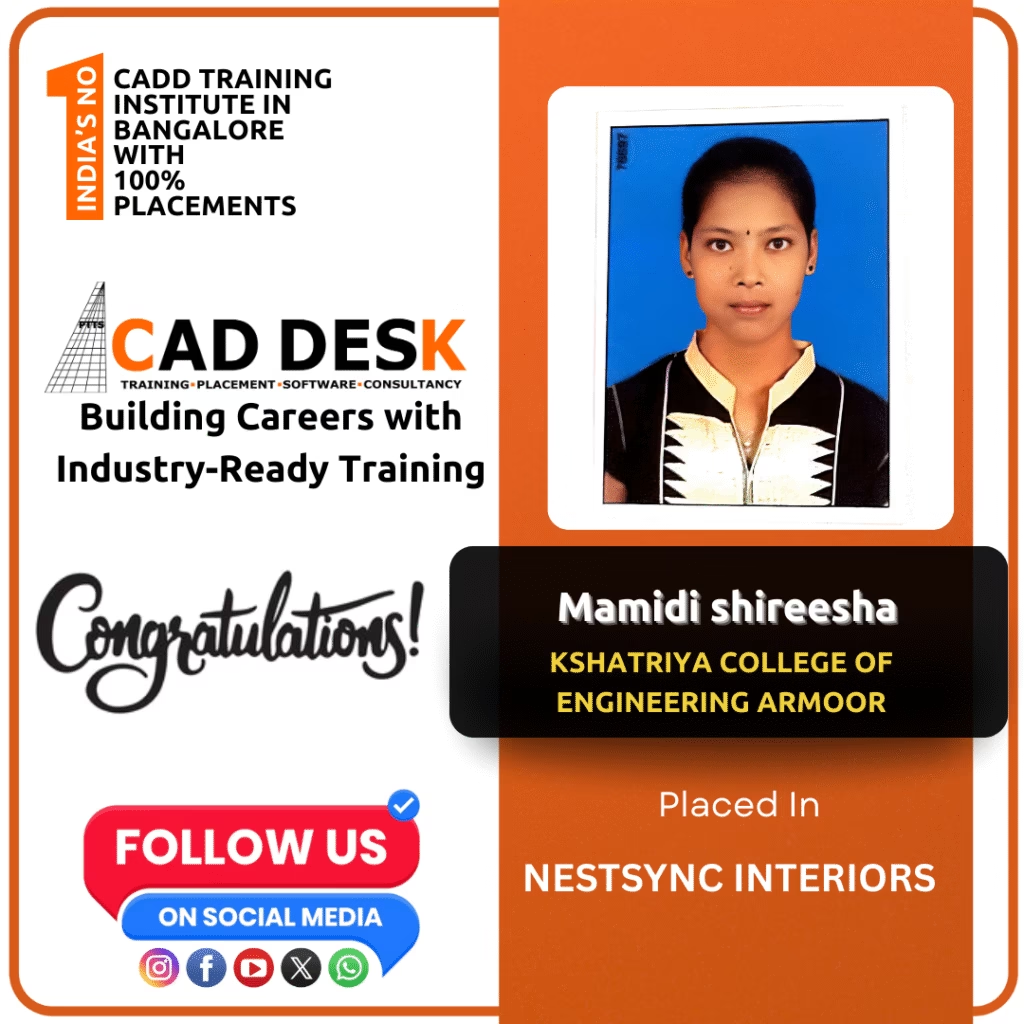
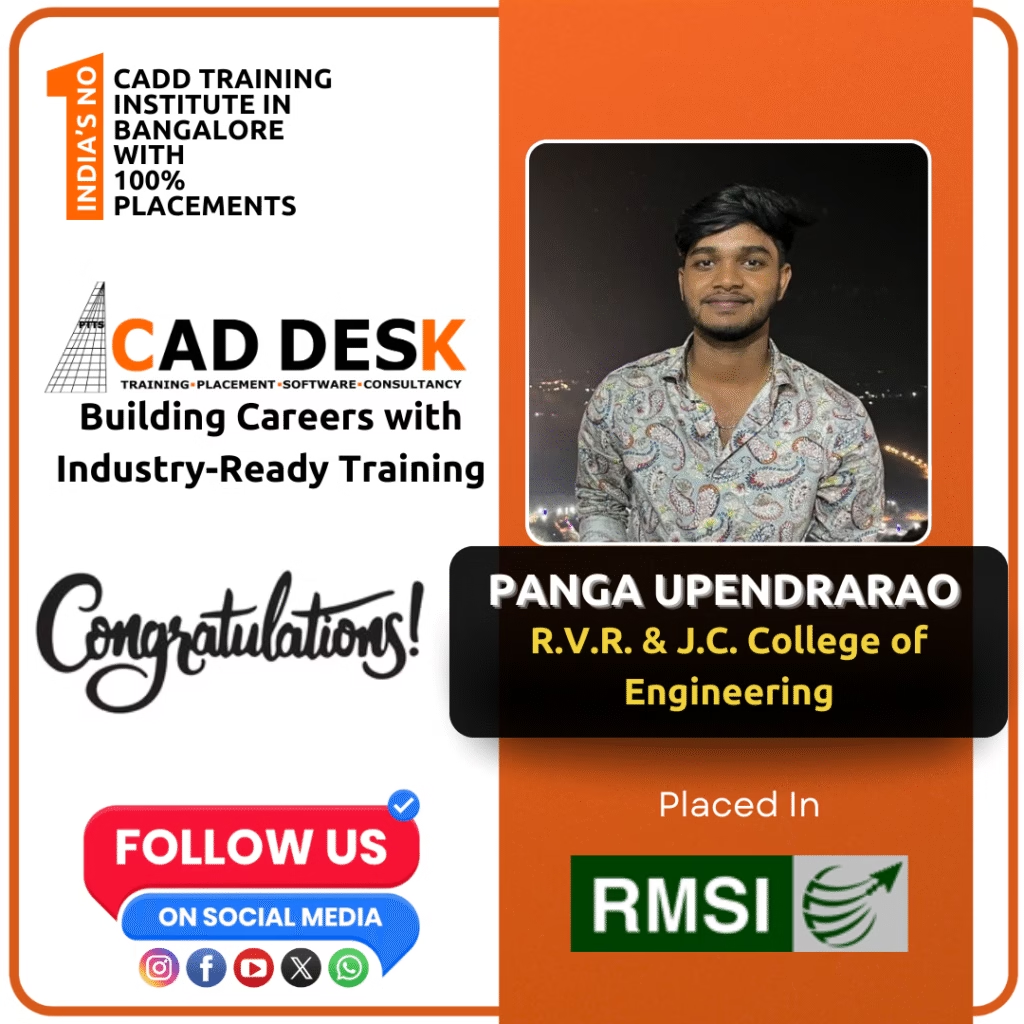
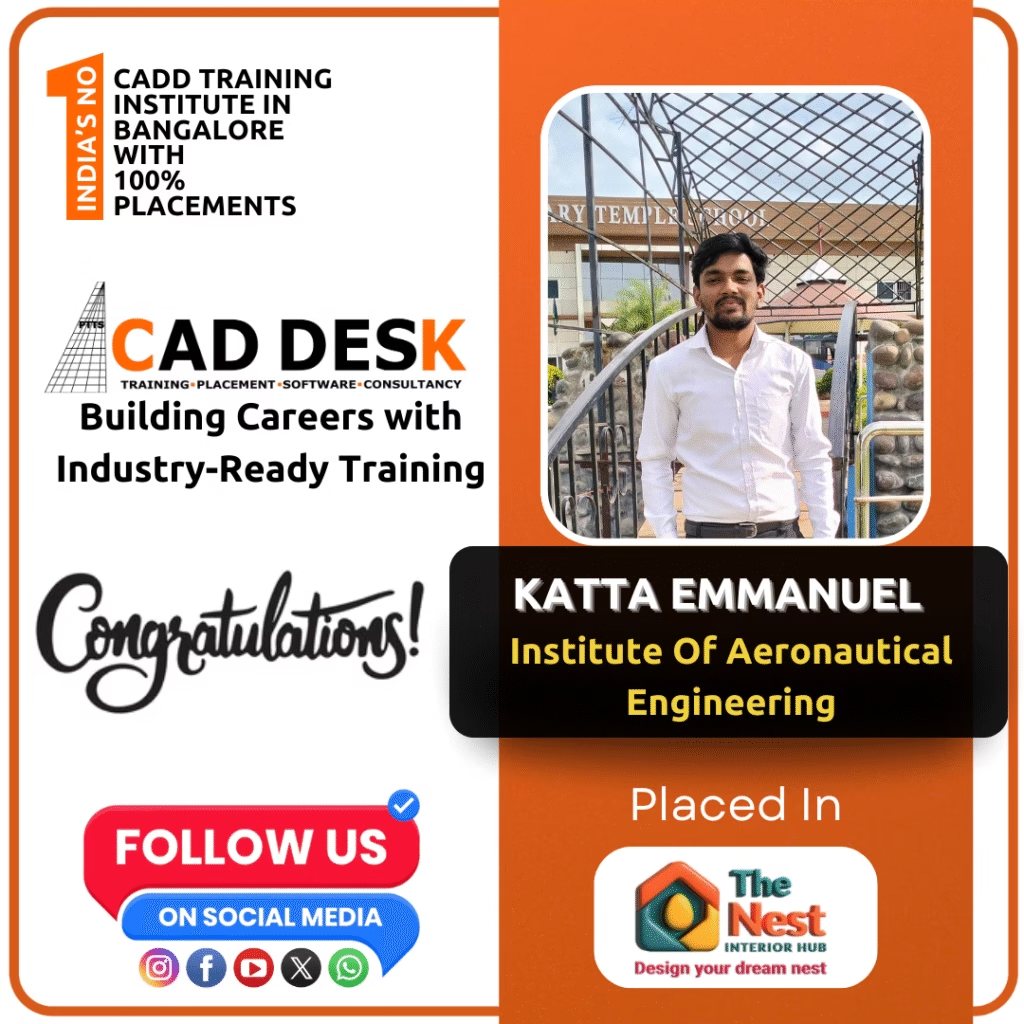
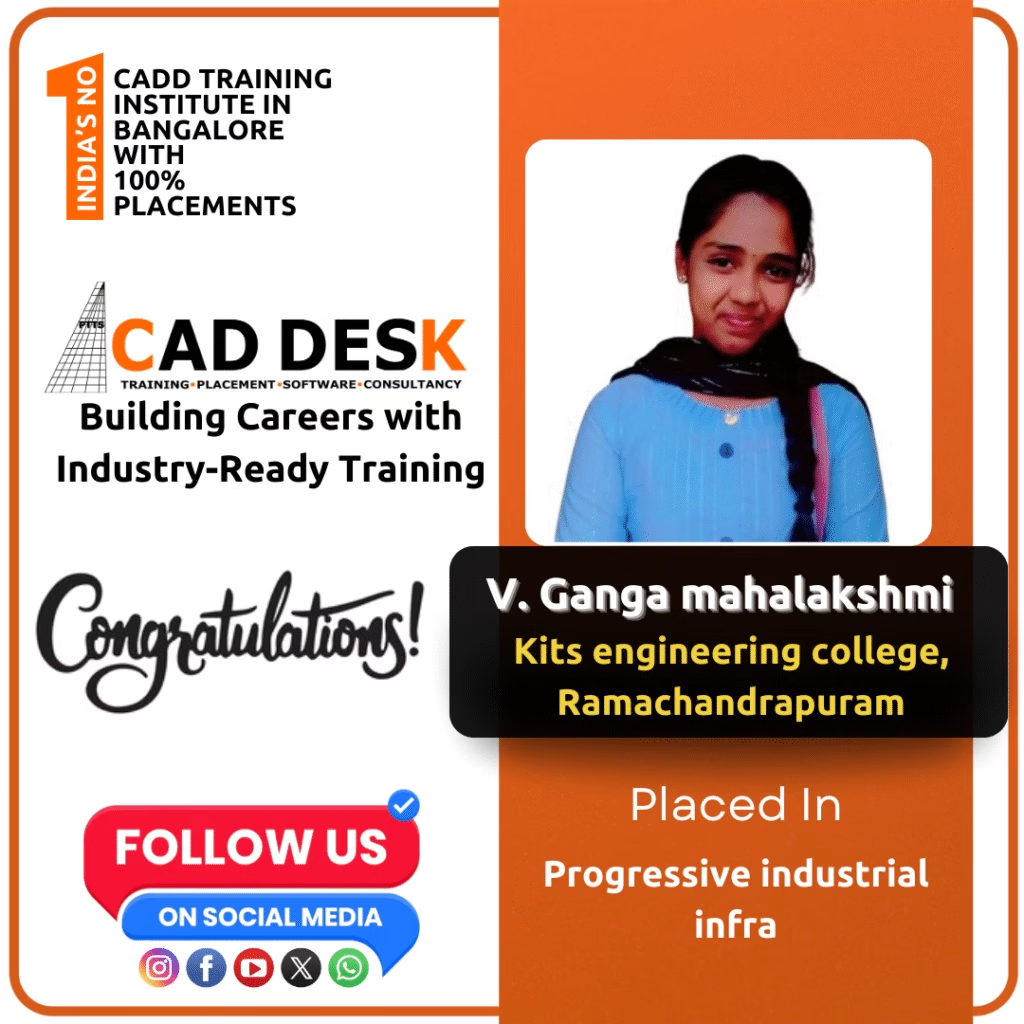
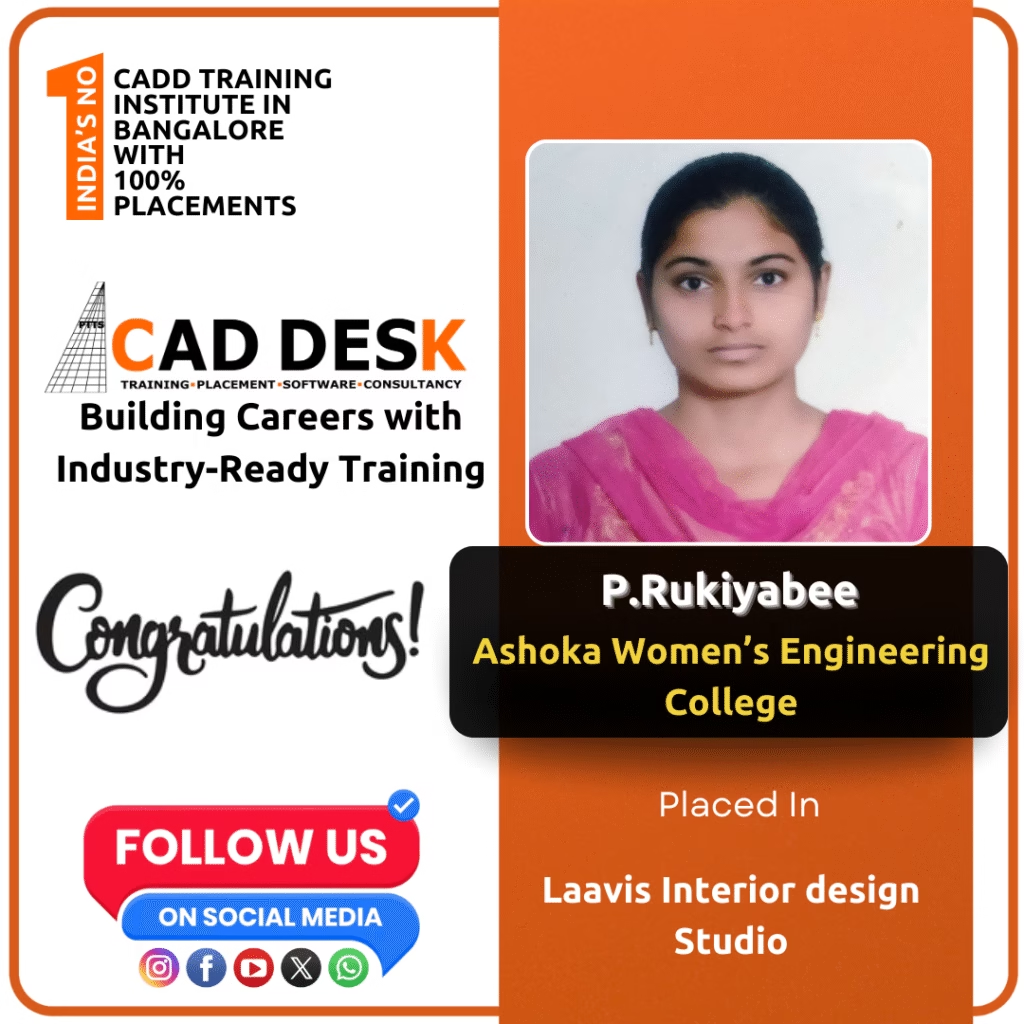
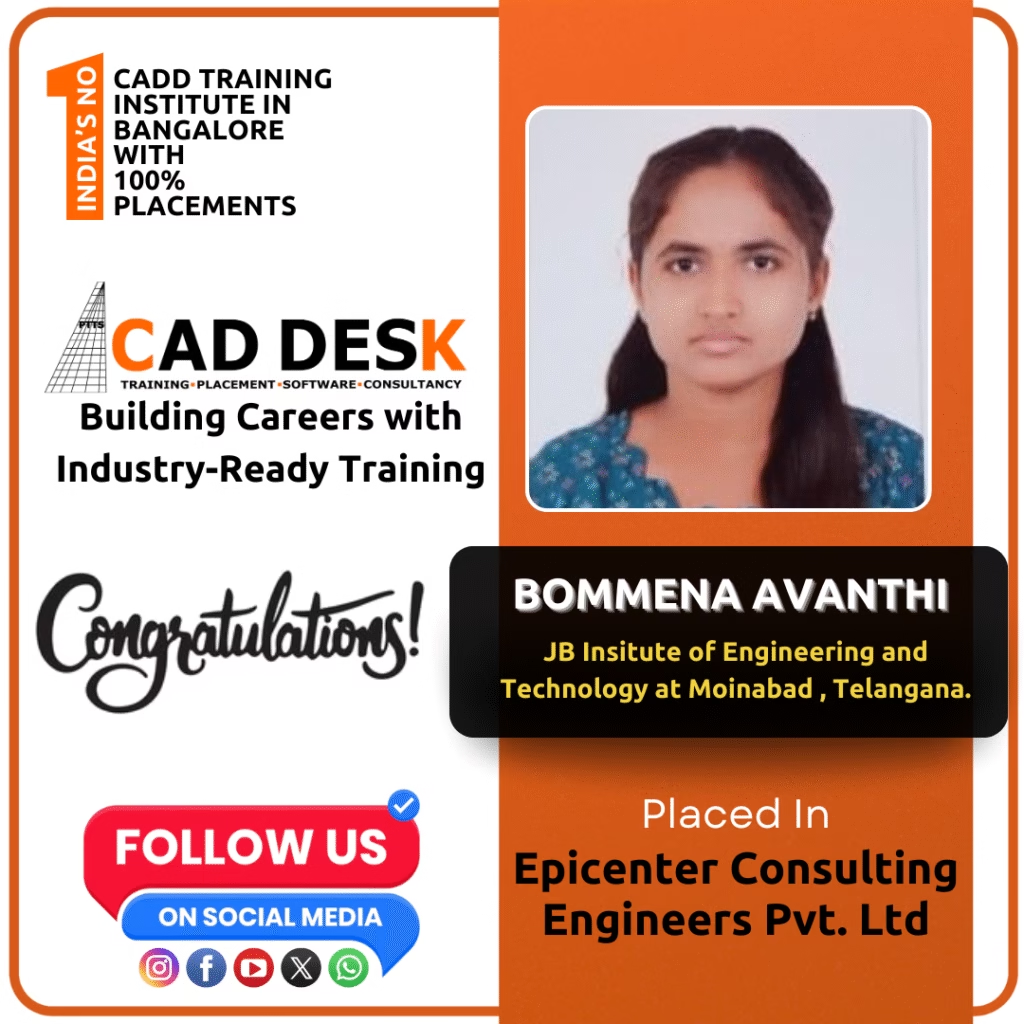
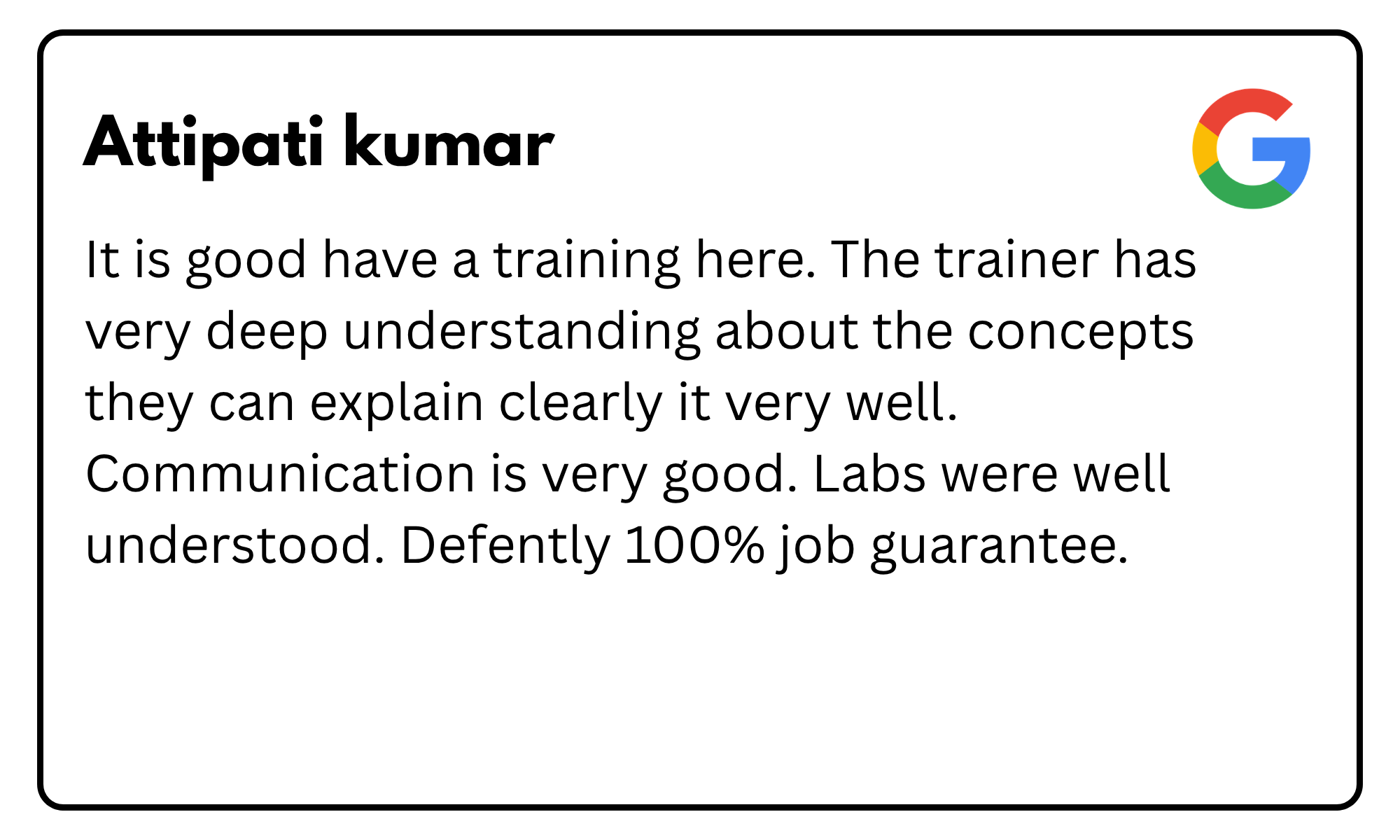
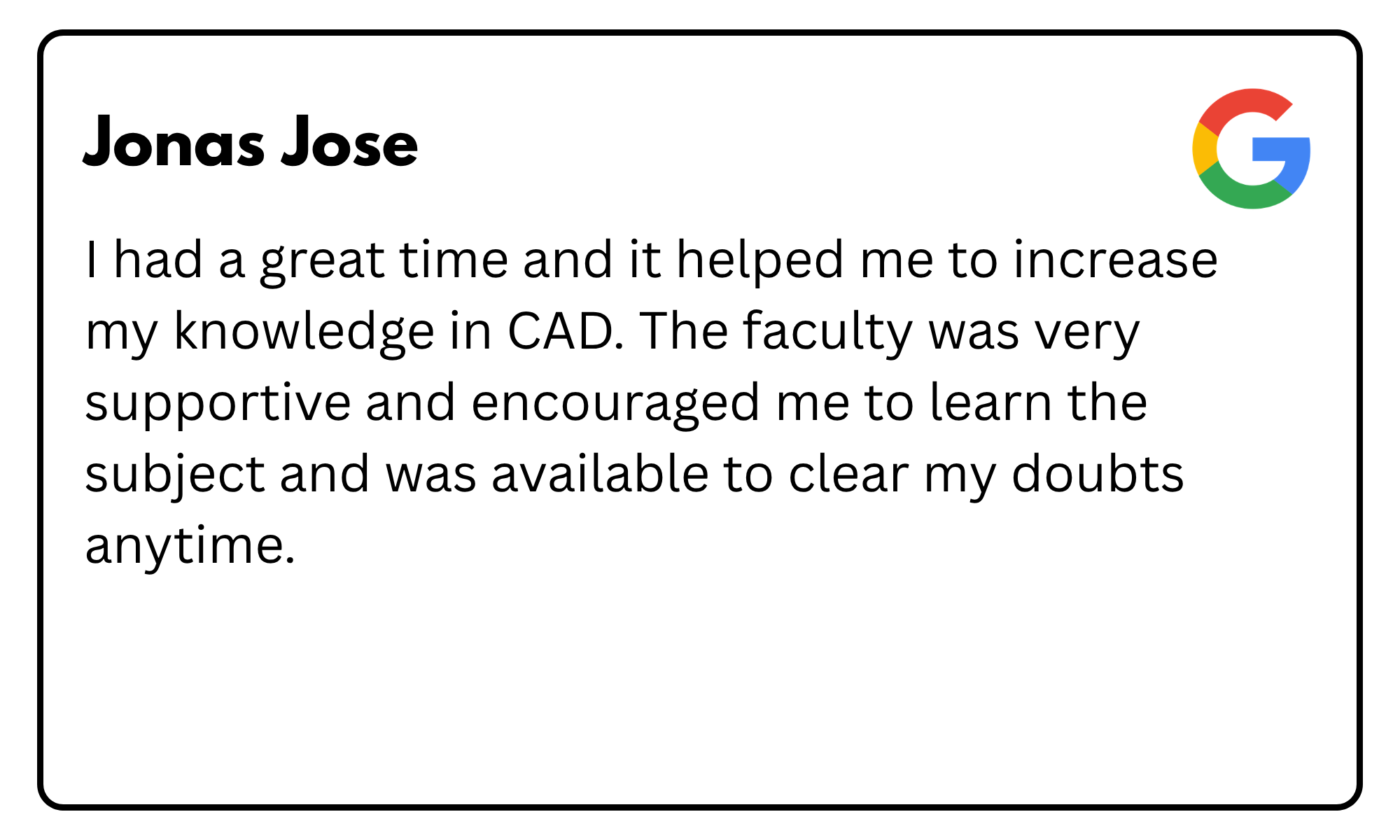
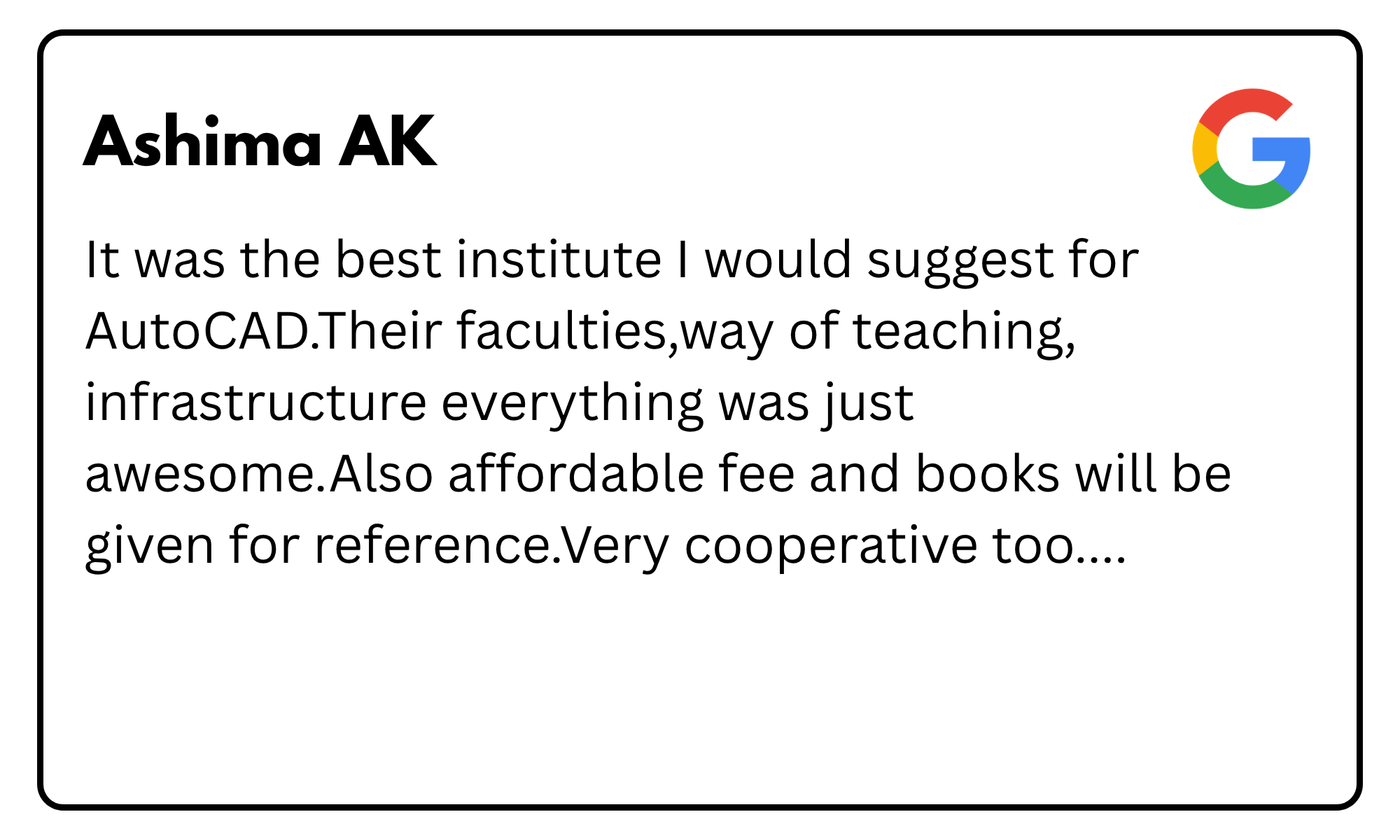
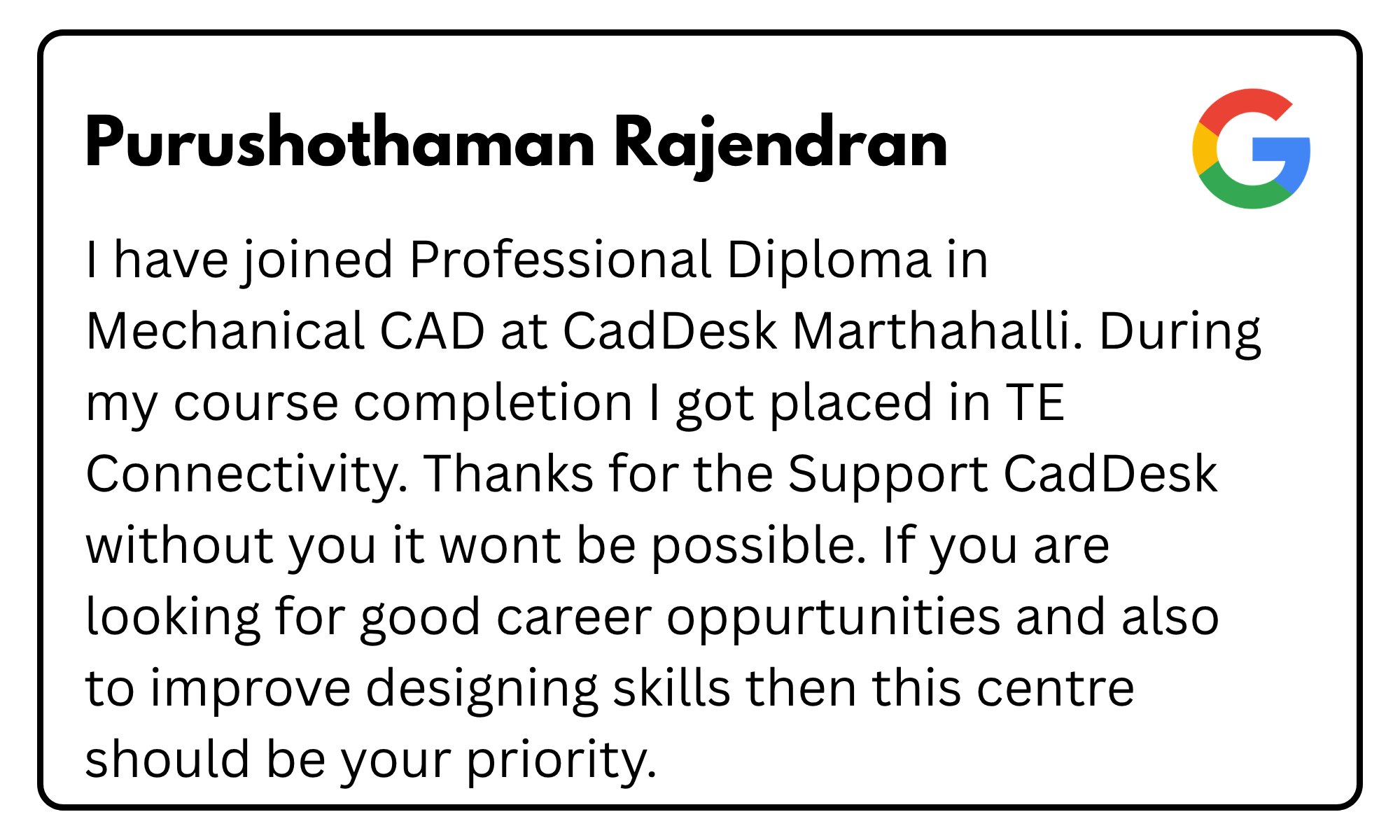
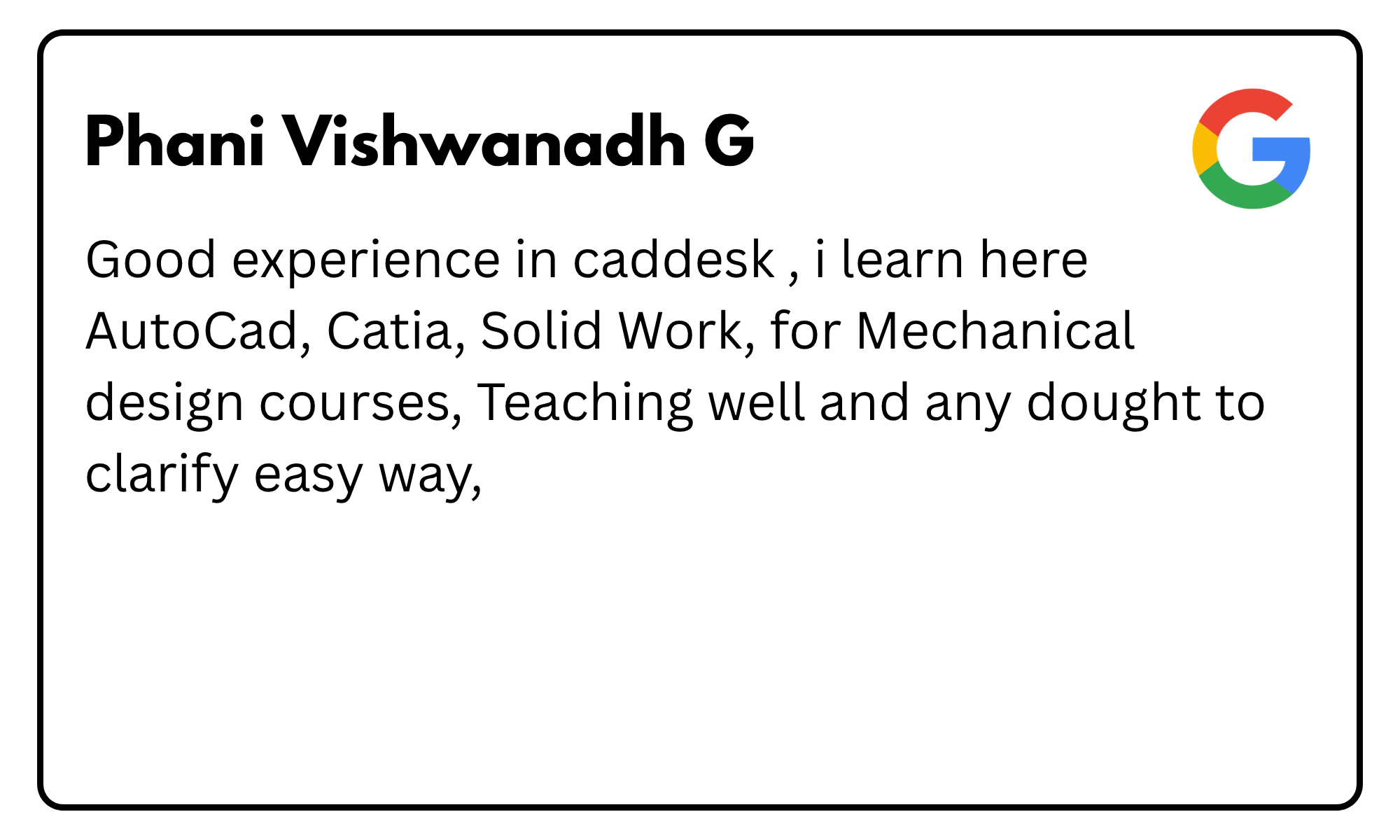
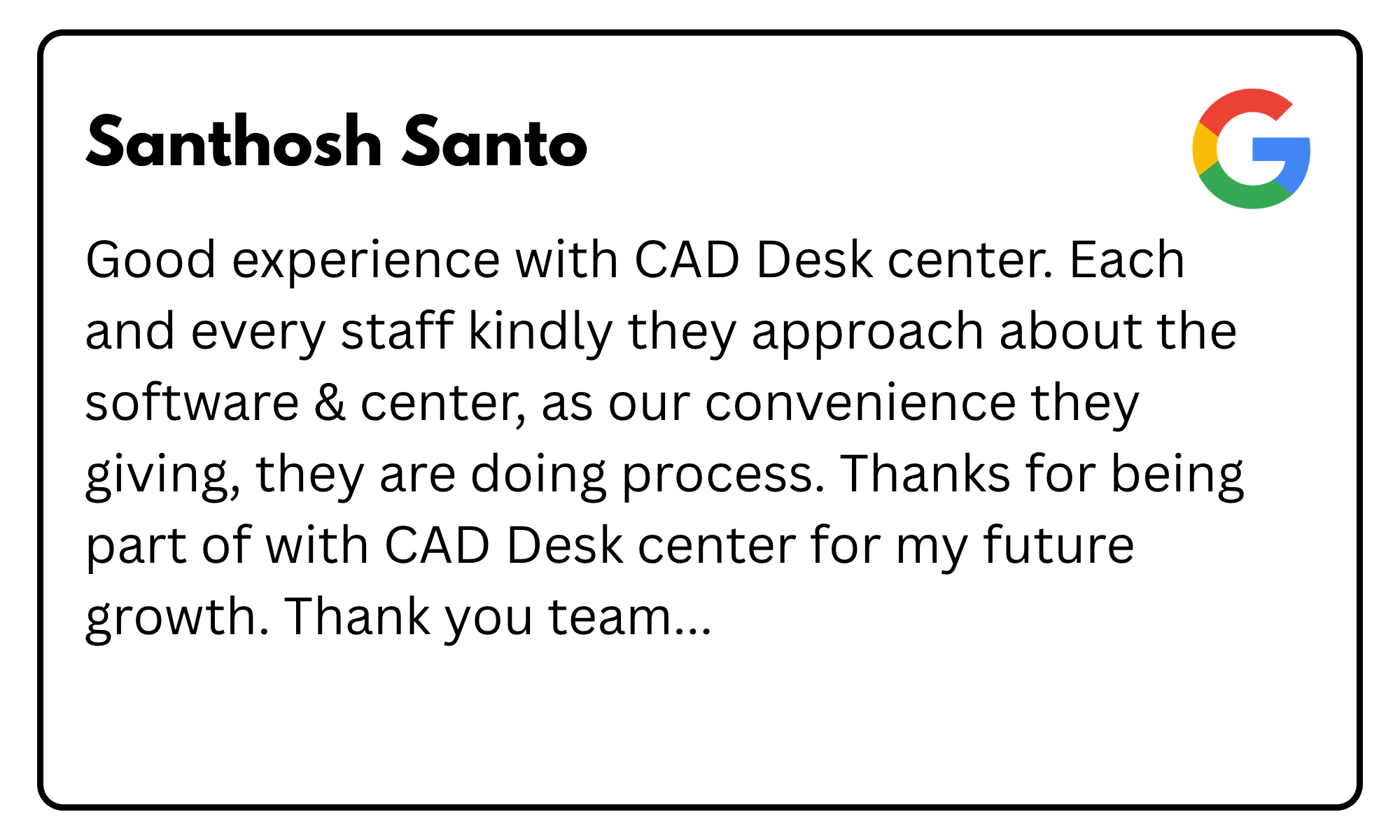
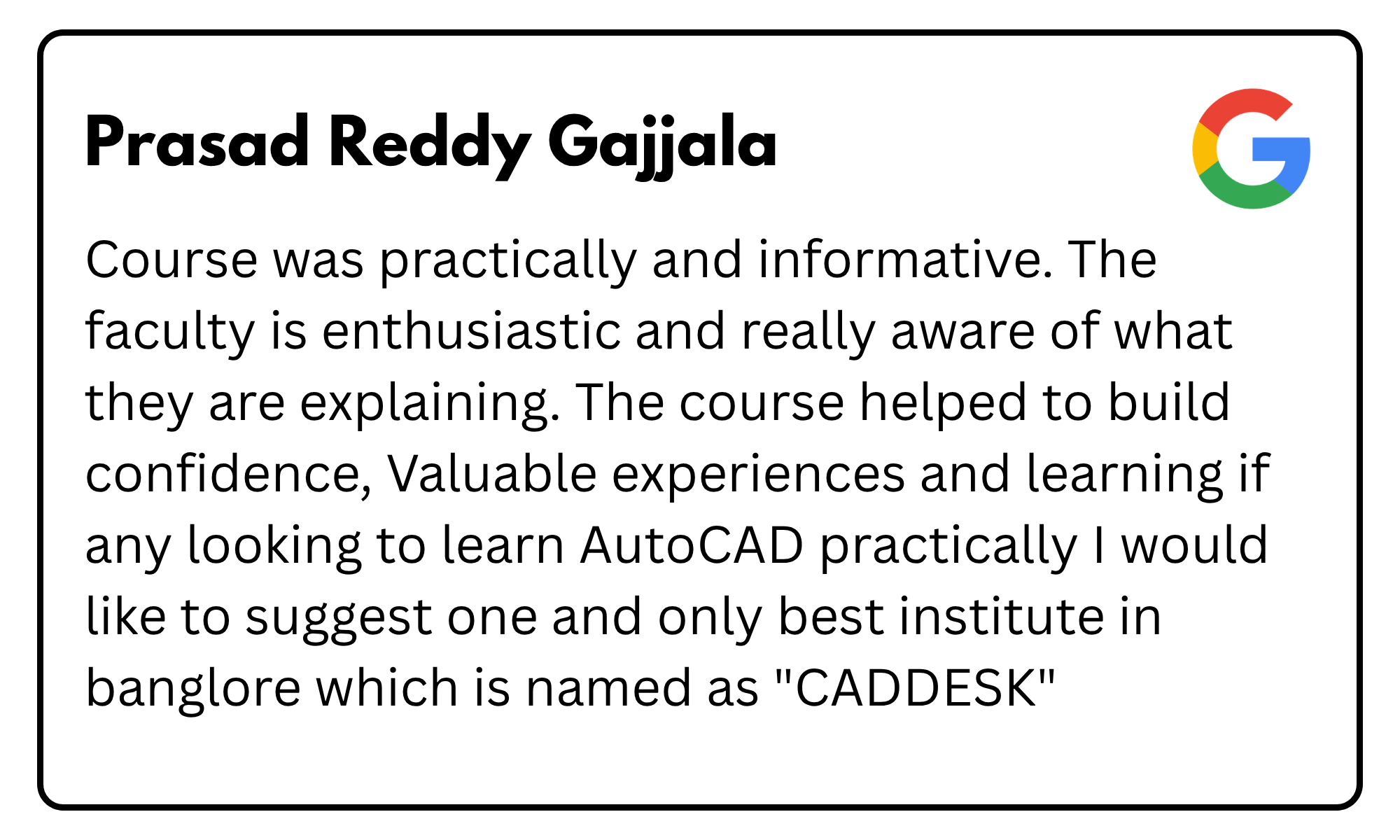
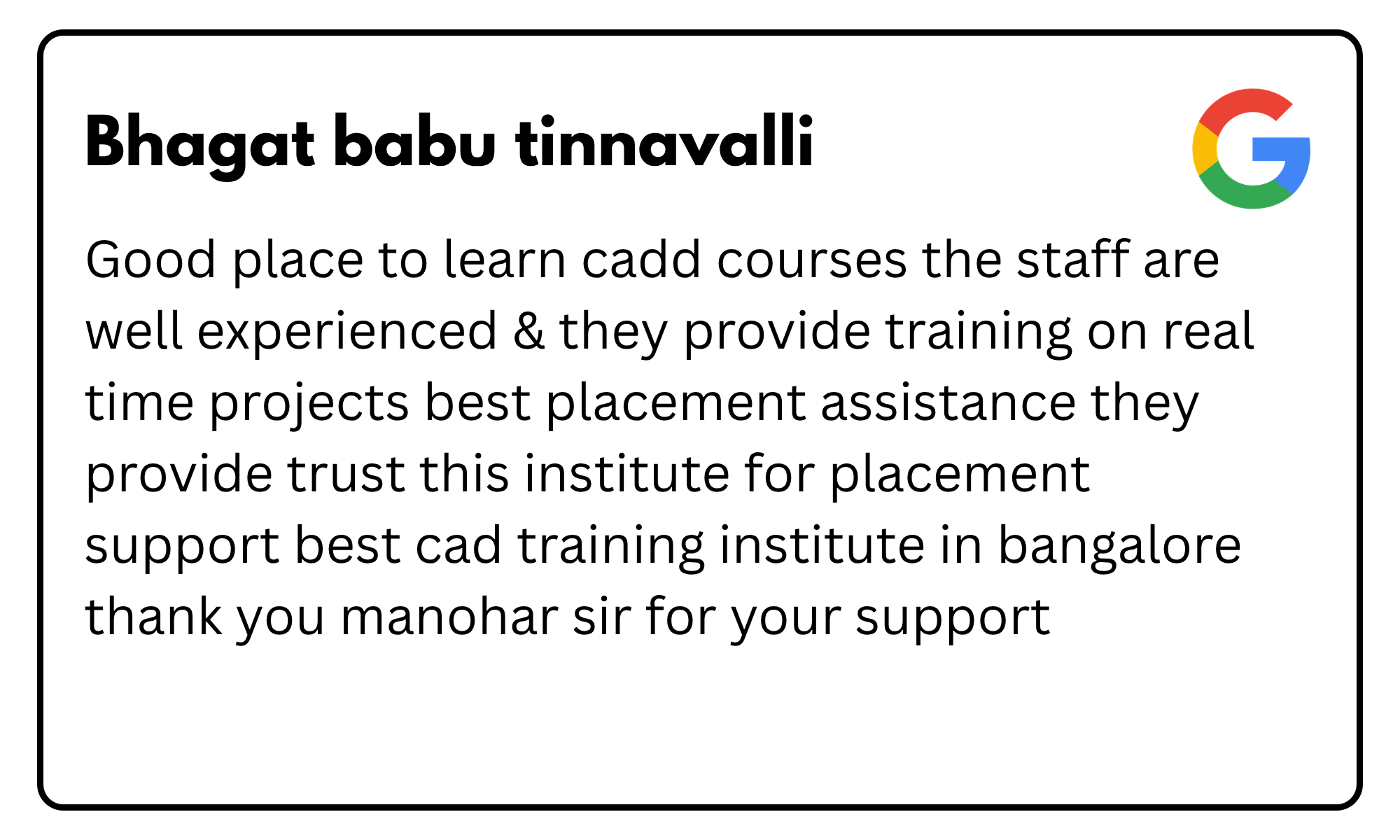
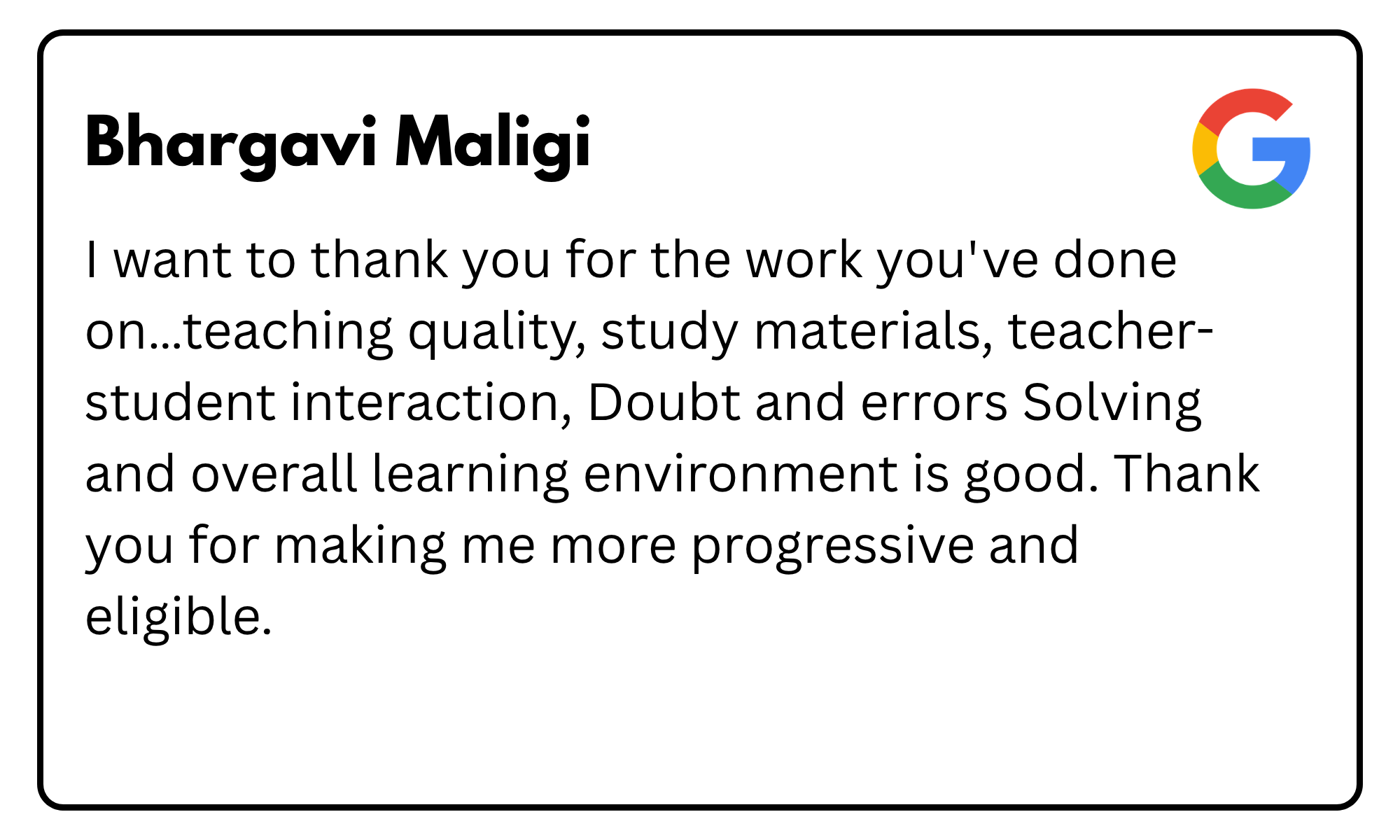
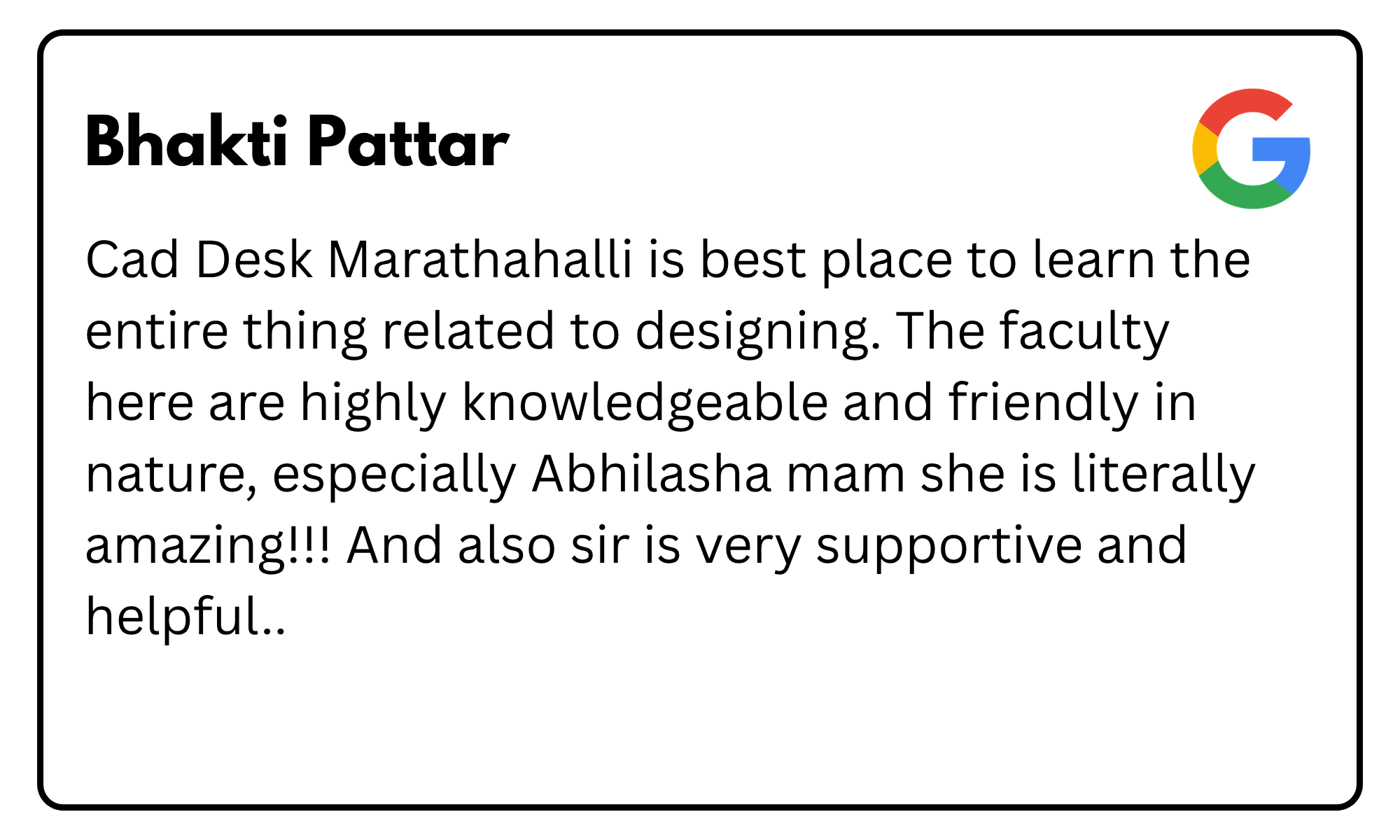
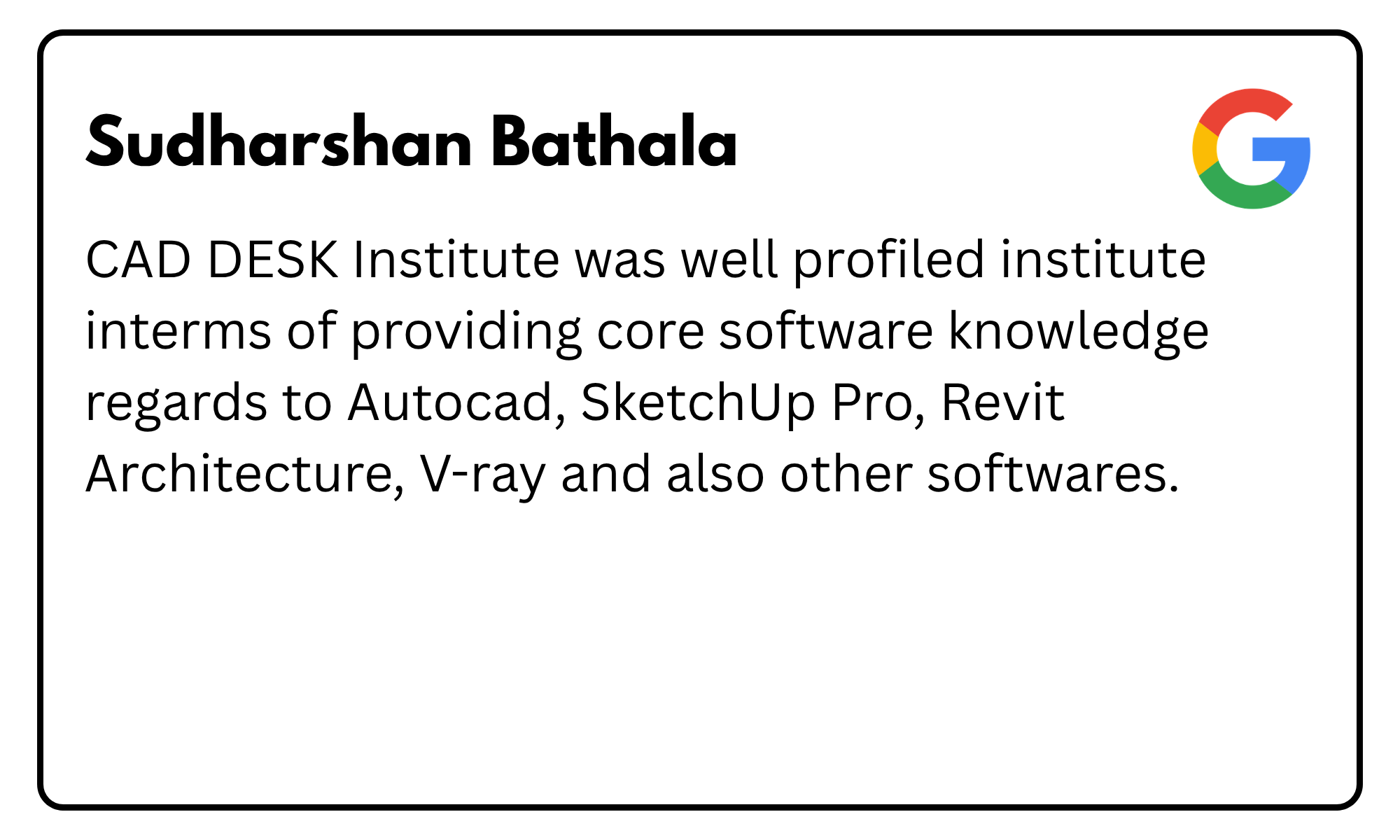
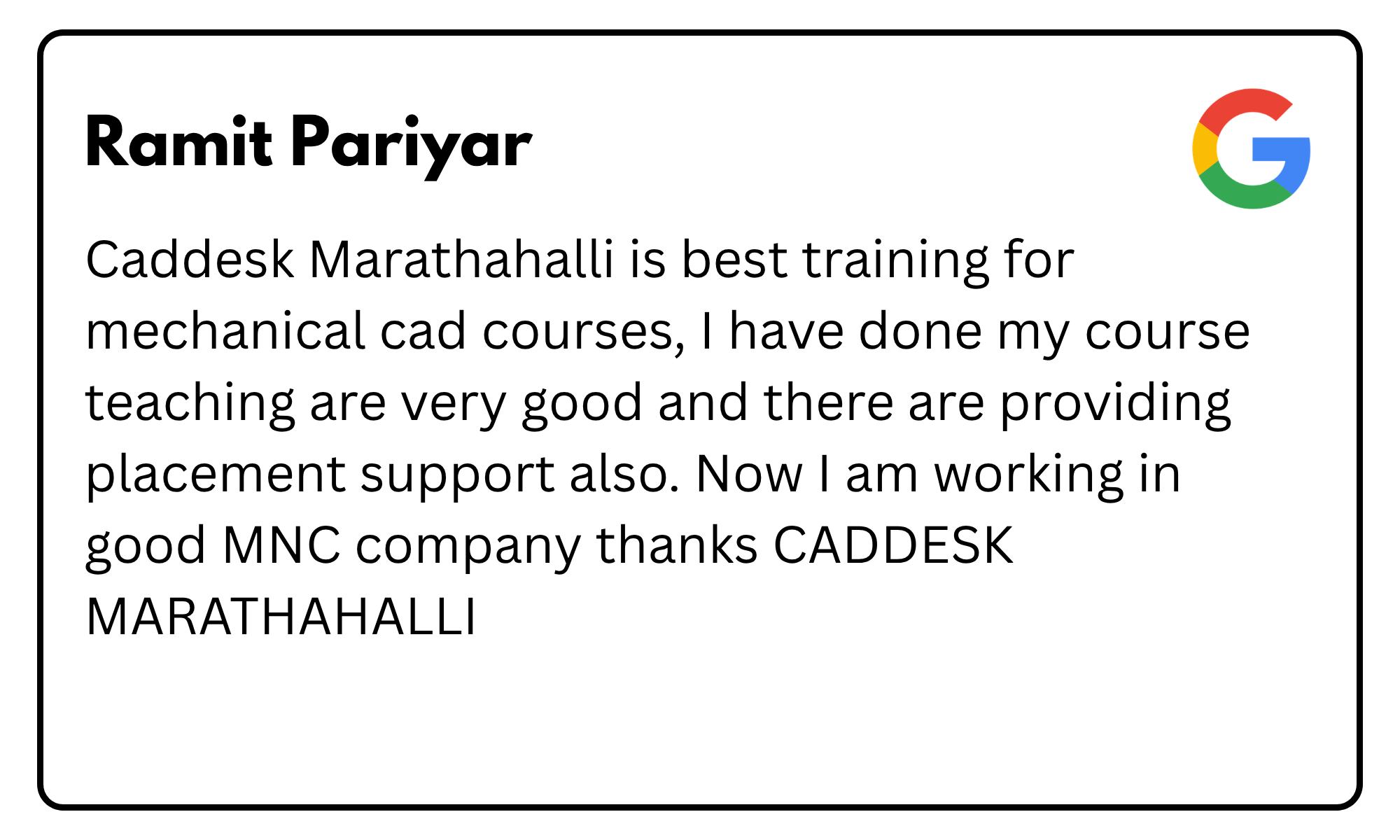
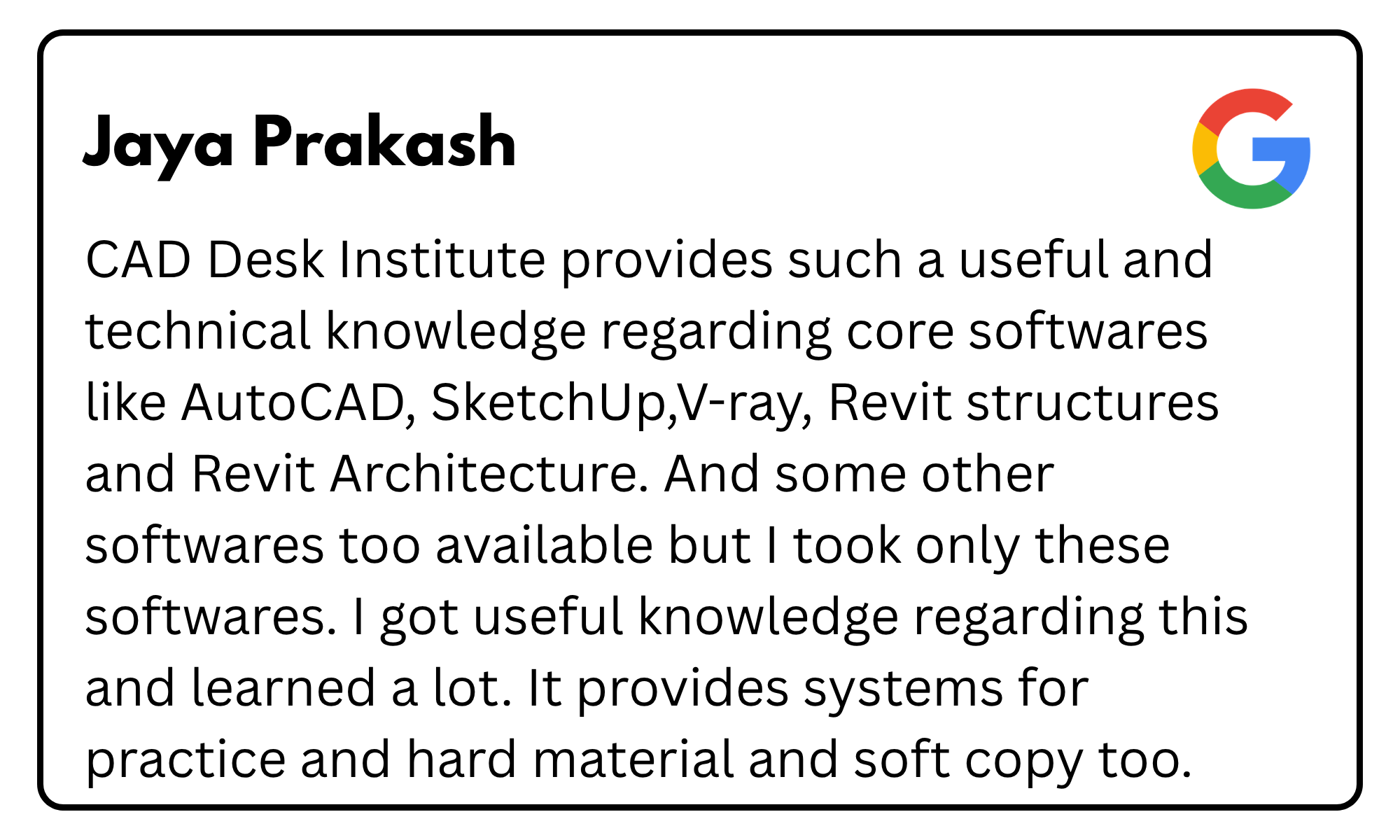
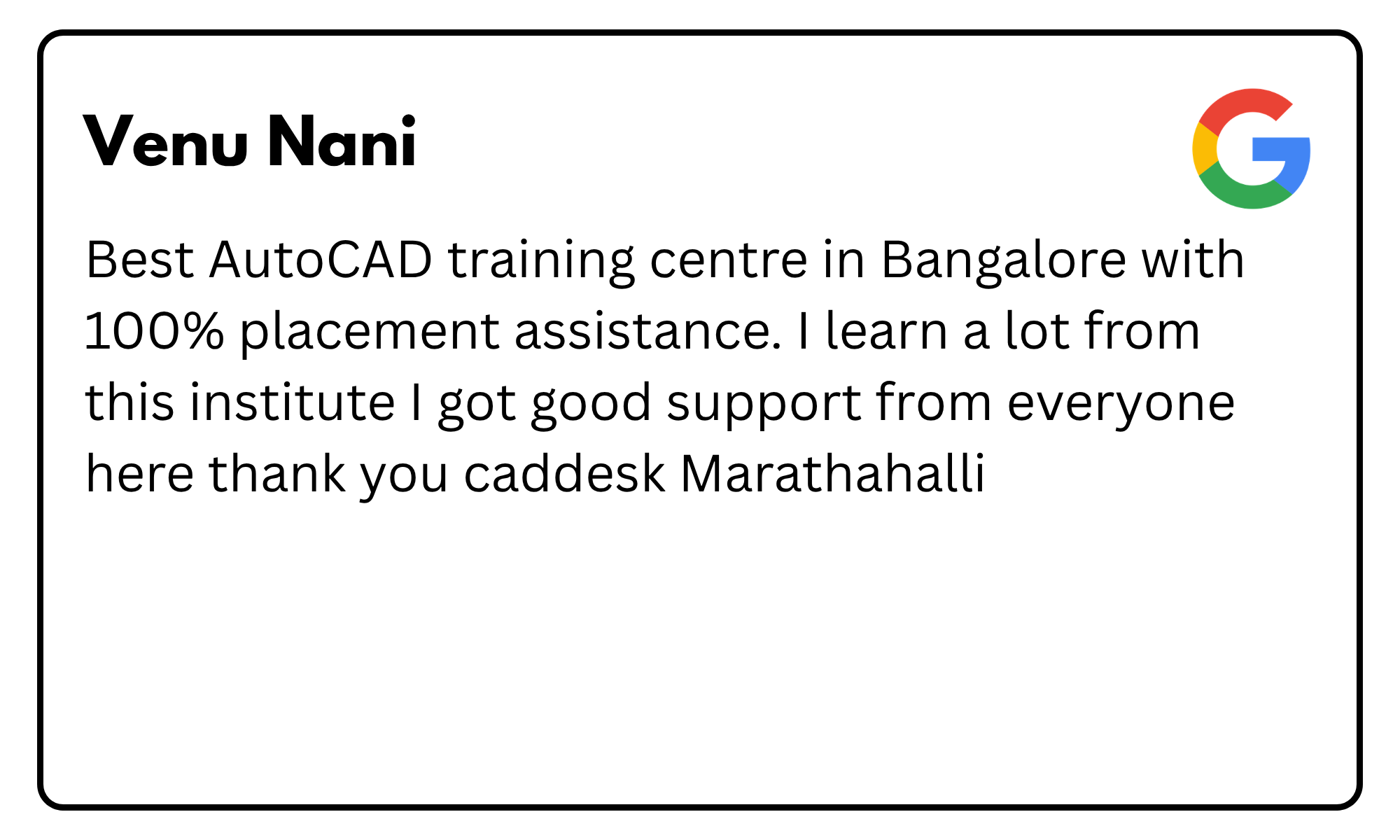
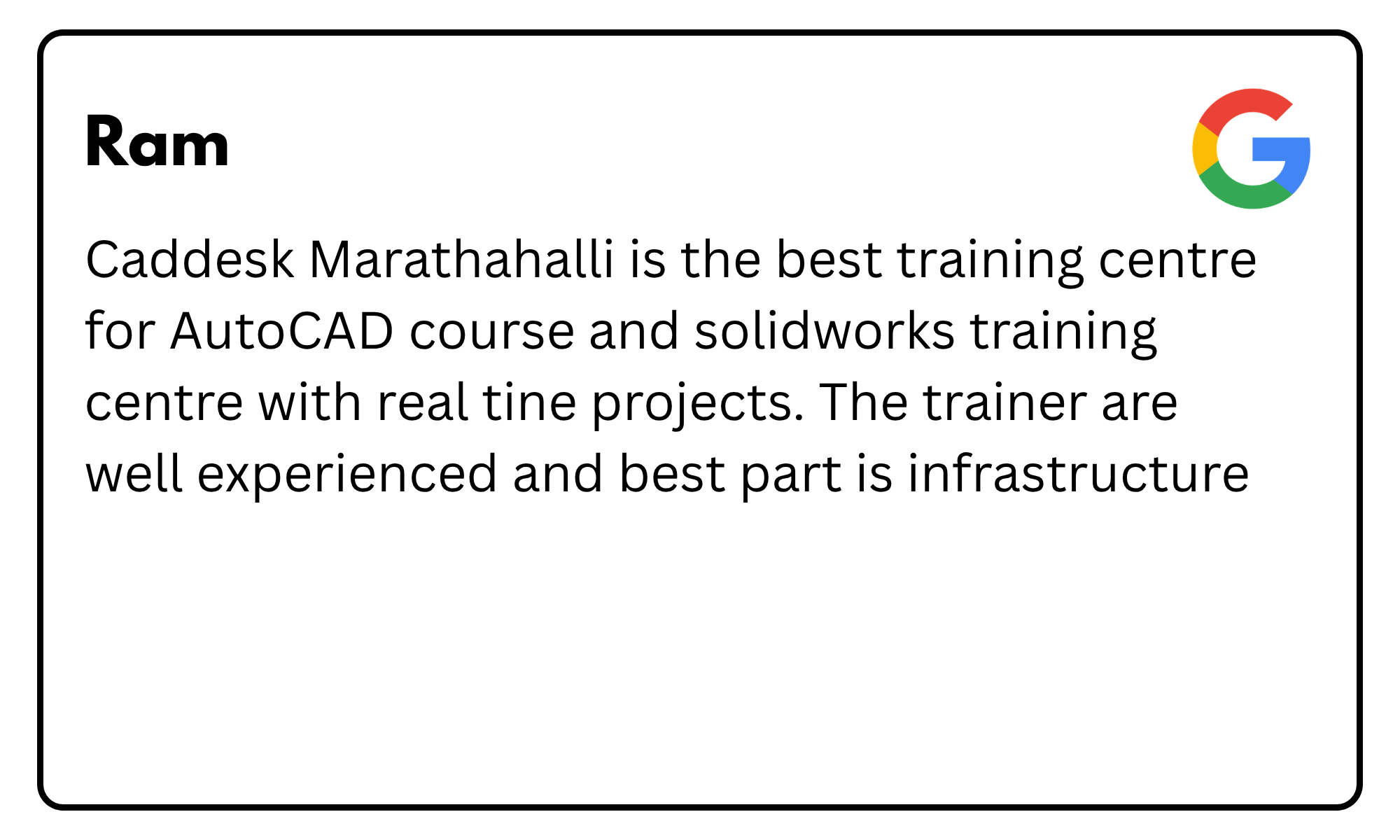
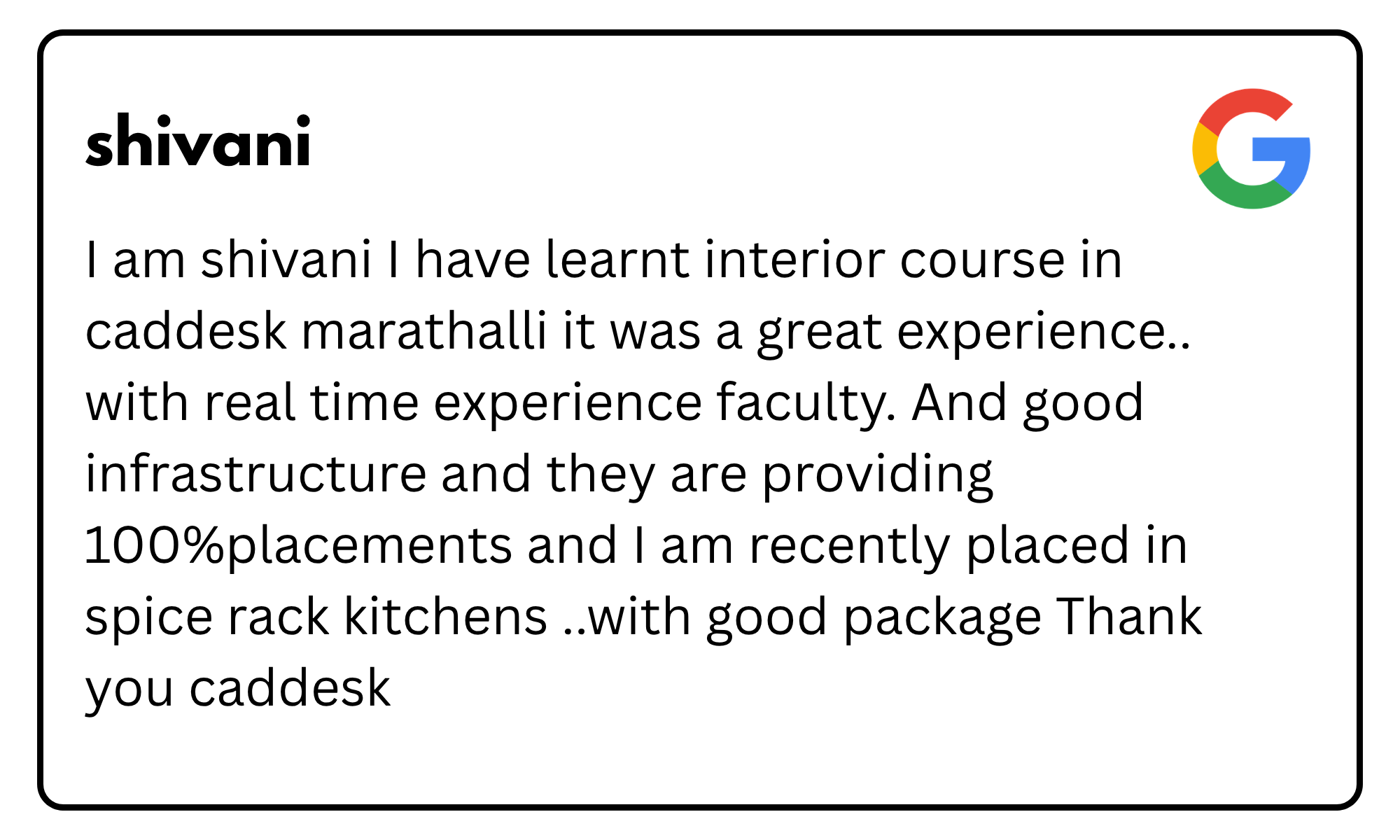
What Our Students Say
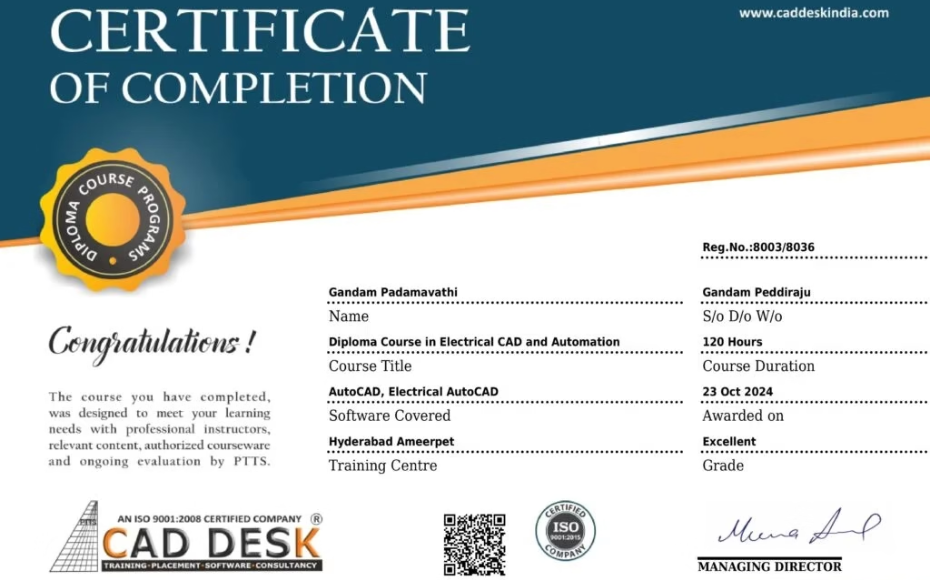
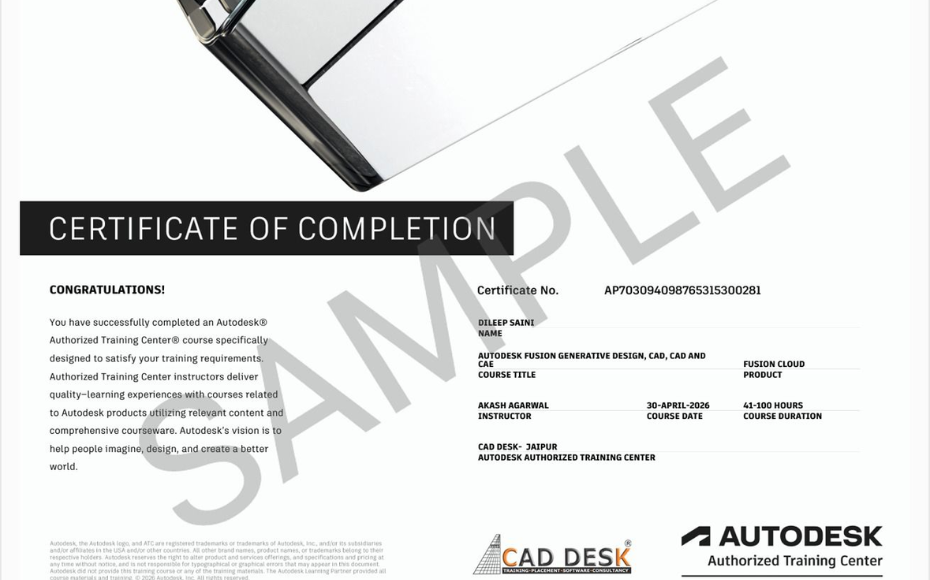
Earn Autodesk & CADDESK Certifications
Successfully complete the BIM course training at CADDESK Marathahalli Bangalore and receive industry-authorized certifications that validate your practical BIM, Revit, and project coordination skills, helping you prepare for real-world career opportunities in architecture, construction, and engineering industries.
Career Opportunities After BIM Course In CADDESK Marathahalli Bangalore.
BIM Modeler
₹2.5L - ₹4L/yr
BIM Coordinator
₹2.5L - ₹4L/yr
Revit Architect
₹2.5L - ₹4L/yr
MEP BIM Engineer
₹2.5L - ₹4L/yr
Structural BIM Engineer
₹2.5L - ₹4L/yr
High Demand Career In Construction & Architecture Industry
1000+ Students Successfully Trained









































Start Your Career In BIM
Get Expert Guidance to Start Your BIM Career
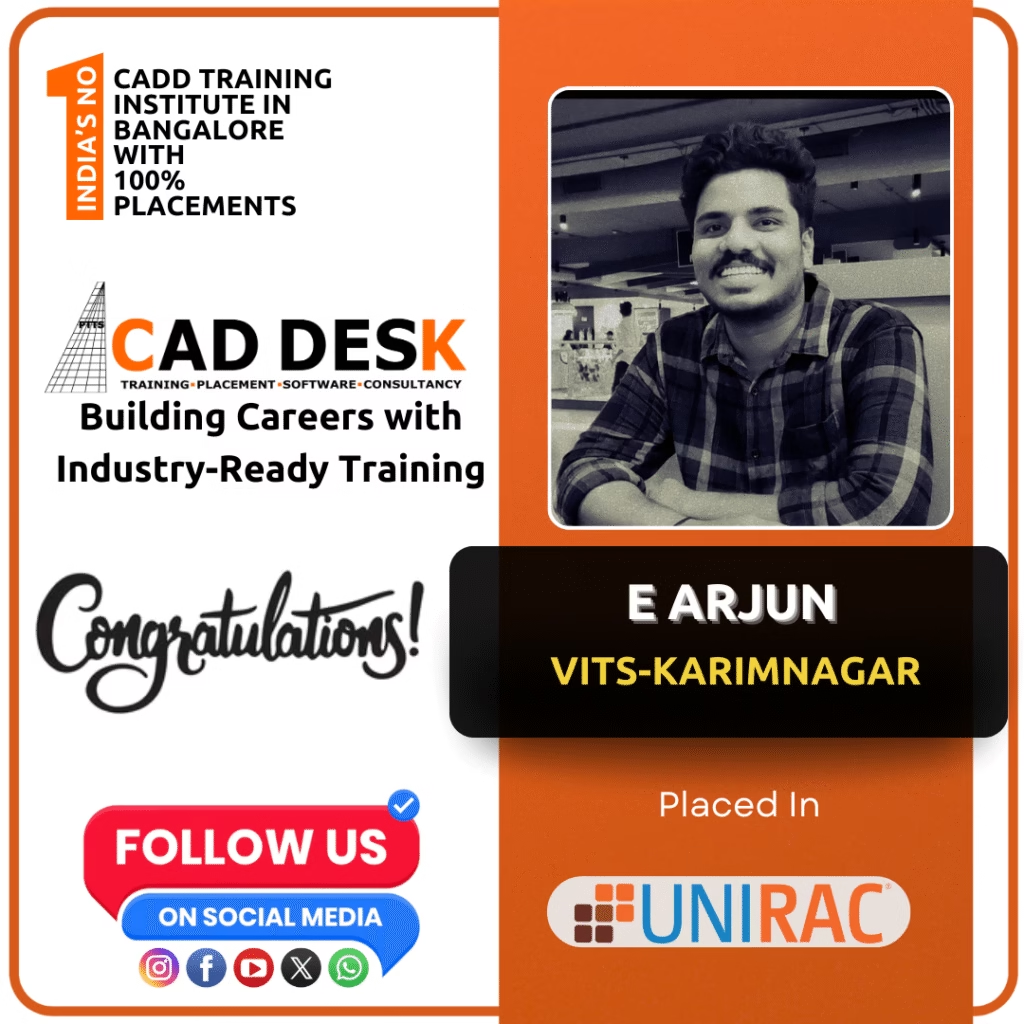
Student Success Stories From CADDESK Marathahalli Bangalore.

Limited Seats Available For Upcoming Batch Book Your Free Demo Session Today
- Flat No 102, KRISHNA GRAND, beside Khazana Jewellery, Aswath Nagar, Marathahalli, Bengaluru, Karnataka 560037
- marathahalli@smartcadindia.com
- 8884490200